Deploy your first firewall — AWS
Enforza runs as a packet-engine on a Linux VM: it classifies each flow once and enforces it in-kernel at line rate. You’ll deploy it on an EC2 instance you control, in your own VPC — a single instance to start, or one per Availability Zone for redundancy. Size the instance for your expected throughput (you can scale it up freely — the licence is flat). Plan on ~5 minutes from “launch instance” to “first packet inspected”.
1. Pick a VM size
Section titled “1. Pick a VM size”- Lab / proof-of-concept —
t3.small(2 vCPU, 2 GiB) is fine for <100 Mbps and a handful of flows/sec. - Production egress / east-west —
c6i.largeorc6i.xlarge. The engine auto-tunes hardening meters to instance size; thousands of new TLS handshakes/sec onc6i.xlarge. - OS — any modern Ubuntu, Debian, RHEL, Rocky, Alma, Oracle, or Amazon Linux 2023 will work. Ubuntu 22.04+ is what we test against in CI.
2. Launch the EC2 instance
Section titled “2. Launch the EC2 instance”- EC2 Console → Launch instances. Pick the AMI and size from step 1.
- Network — the subnet you want firewalls deployed in. For an inspection / NAT gateway, this is typically a public-subnet ENI on the inspection VPC.
- Auto-assign public IP — enable if the packet-engine has no other route to the internet. The packet-engine needs outbound TCP/443 to reach the Enforza cloud platform.
- Security group — outbound: allow all (or at minimum HTTPS / TCP 443 to the control plane). Inbound: allow whatever you intend the firewall to receive (typically nothing on management — the engine connects out to us).
- IAM instance profile — optional now, but if you plan to use the AWS S3
log-export sink later, attach a role with
s3:PutObjecton your archive bucket up-front. Saves a stop/start later. - Launch. Note the instance ID.
3. Disable the source/destination check
Section titled “3. Disable the source/destination check”Without this step, the EC2 networking stack drops any packet whose source or destination IP doesn’t match the instance’s primary IP — i.e. exactly the packets a firewall is meant to forward. Turn it off on the instance’s primary ENI:
aws ec2 modify-instance-attribute \ --instance-id i-0123456789abcdef0 \ --no-source-dest-checkOr in the EC2 console: Instance → Actions → Networking → Change source/destination check → uncheck → Save.
4. (If using AWS-managed routing) point routes at the engine
Section titled “4. (If using AWS-managed routing) point routes at the engine”For an inspection / NAT topology: edit the route table on the protected subnet
so its default route (0.0.0.0/0) targets the engine’s ENI instead of the IGW
or NAT gateway. The engine forwards through itself and the AWS fabric delivers
downstream. This is the same routing pattern as a self-managed NAT instance.
5. Generate a deployment (registration) key
Section titled “5. Generate a deployment (registration) key”- In the Enforza console, go to Deployment Keys.
- Click Mint key, give it a hint (e.g.
eu-west-2-edge-1) — this becomes the engine’s display name until you rename it. - You’ll see a one-time curl install command. Copy it.
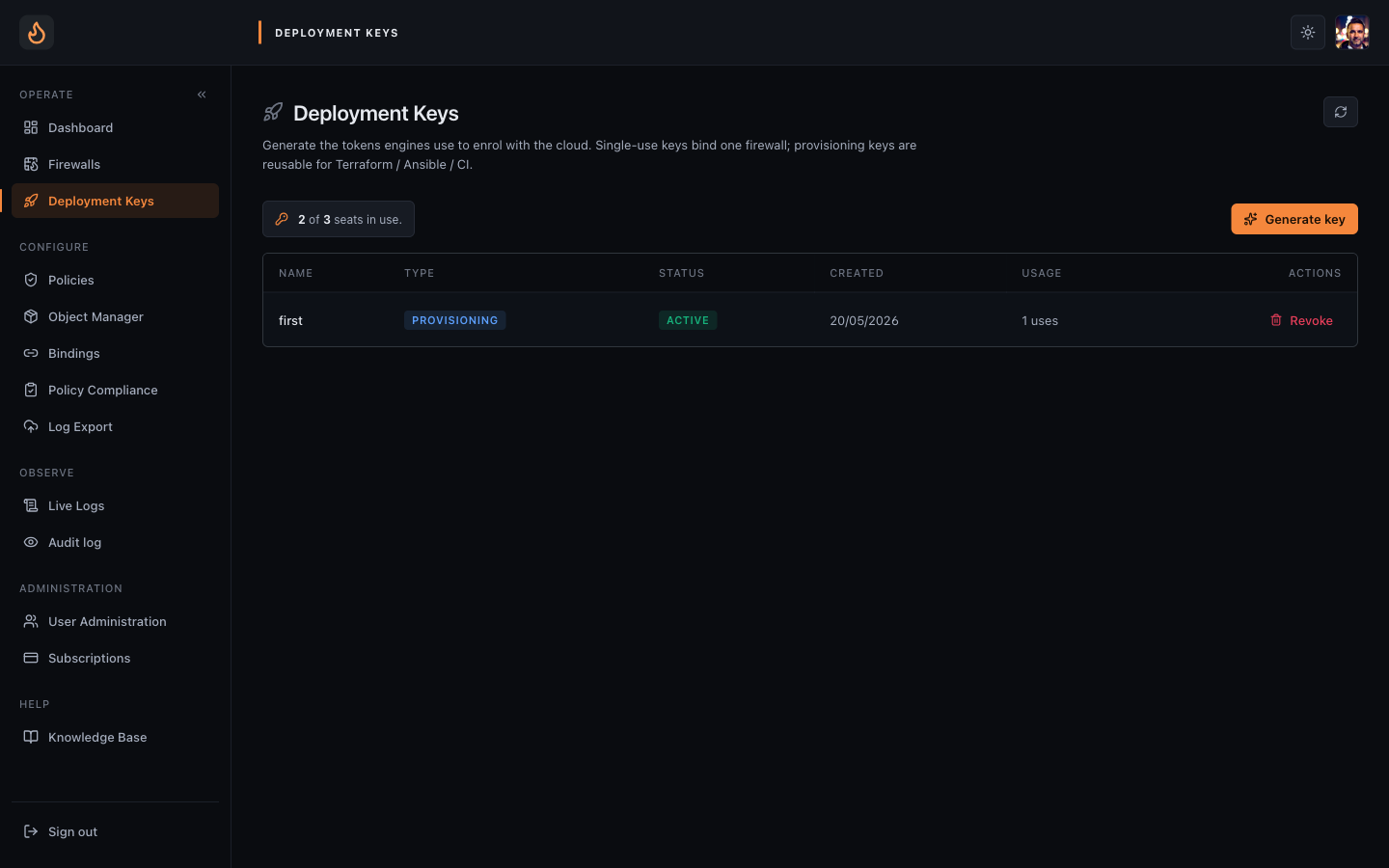 Deployment Keys — mint one per firewall. Each key is one-shot.
6. Install the engine on the VM
Section titled “6. Install the engine on the VM”-
SSH into the EC2 instance.
-
Paste the copied install command. Looks roughly like:
Terminal window curl -fsSL https://dl.neon.efz.io/install.sh \| sudo bash -s -- --regkey=YOUR-KEY-HERE -
The script detects the distro, installs prerequisites, fetches the engine binary, swaps the registration key for a long-lived license token, and starts the
enforza-enginesystemd unit. ~30–60 seconds.
7. Verify
Section titled “7. Verify”- On the VM:
systemctl status enforza-engine— should be active (running). - In the console: Firewalls — the new engine appears with status Online within ~10 seconds of install completing.
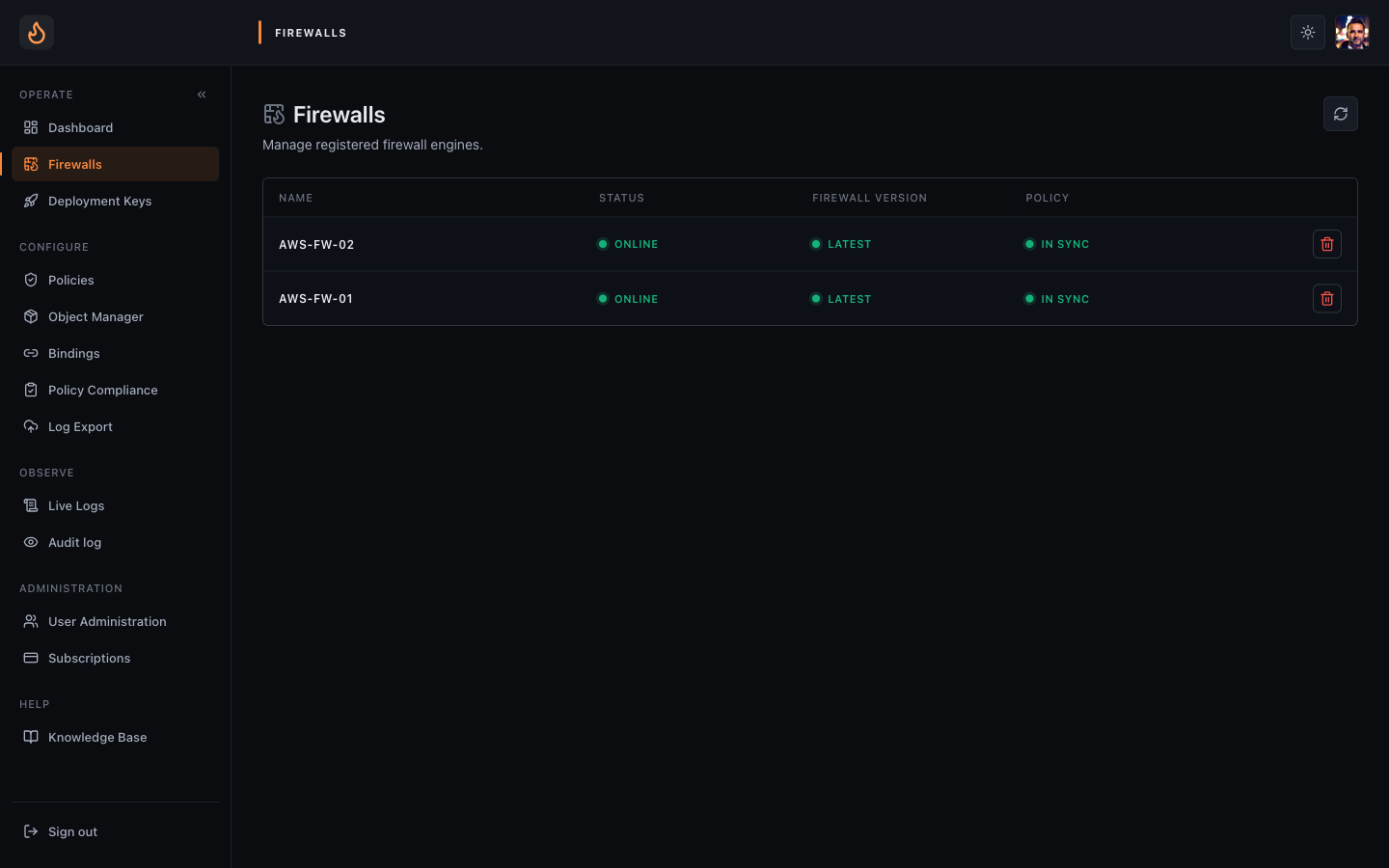 Success — the new engine appears Online on the Firewalls list.
Troubleshooting
Section titled “Troubleshooting”- Install command exits with “registration key not found” — the key was consumed by another engine or has expired. Mint a fresh one.
- Engine running but never appears in the console — the VM has no outbound internet path. Verify the security group + route table + (if private subnet) NAT/IGW.
- Engine appears but no traffic gets through it — source/destination check is still on, or the route table hasn’t been pointed at the engine’s ENI. Re-check steps 3 and 4.
Next: Build a simple policy.